
はじめに
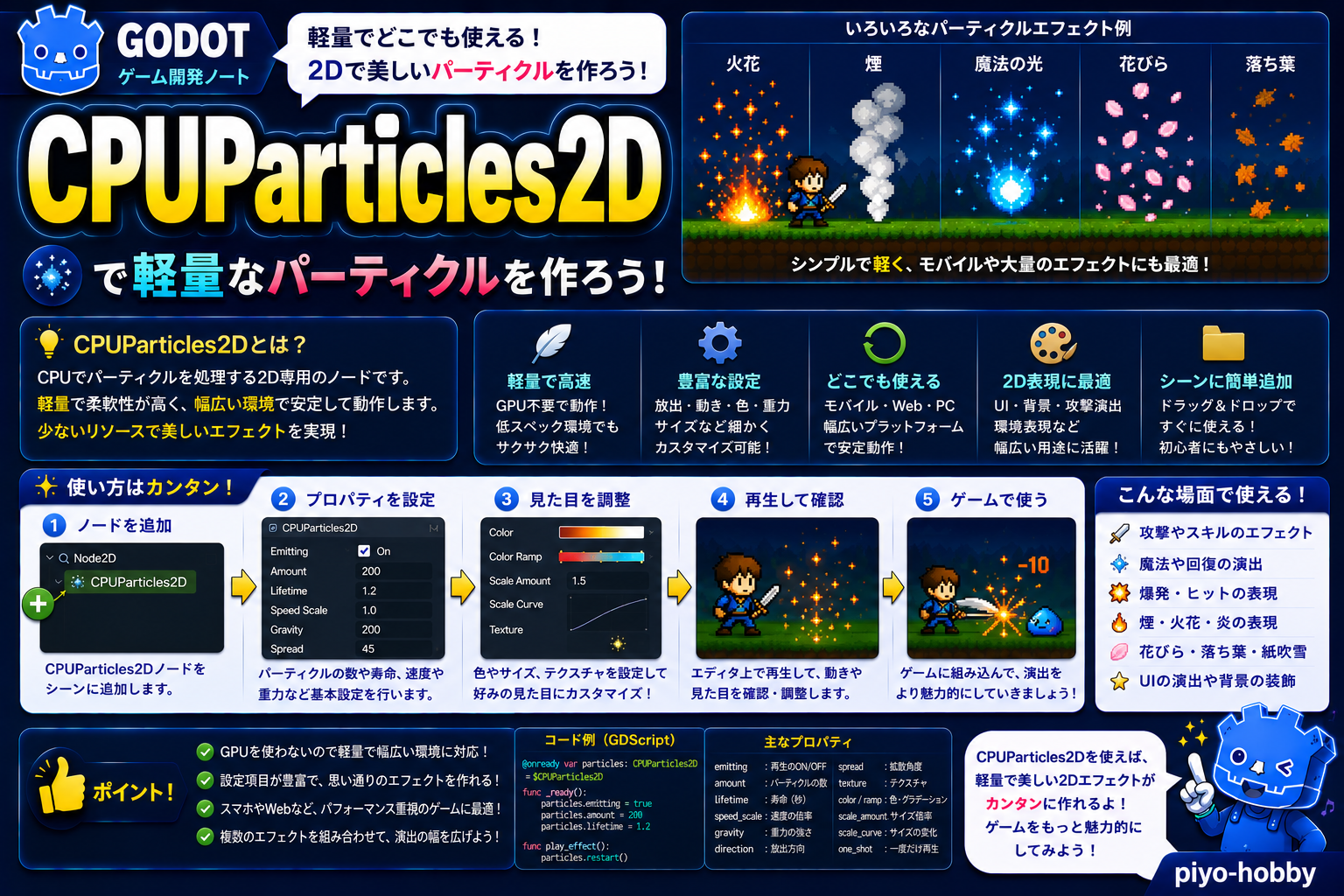
モバイルゲームやローエンド環境で動作させるゲームを作る場合、GPU処理に頼れないことがあります。そんな時に活躍するのが CPUParticles2D です。CPU(プロセッサ)で計算するため動作環境への依存性が低く、より多くのデバイスで安定動作します。
この記事では、CPUParticles2DとGPUParticles2Dの違い、モバイル環境での最適化、そして convert_from_particles() メソッドを使った便利な変換方法までを解説します。
CPUParticles2Dとは?
CPUParticles2D は、CPU(プロセッサ)を使って2Dパーティクルを処理するノードです。GPUParticles2D と同じプロパティ構成を持ちながら、GPU に依存しないため、モバイルデバイスやローエンド環境でも安定動作します。
例えるなら、電卓でコツコツ計算する人。時間がかかるかもしれませんが、どんな計算機でも同じ結果を出せる—それがCPUParticles2Dです。
継承ツリー:
CPUParticles2D → Node2D → Node → Objectこのノードを使うべき場面
使うべき場面
- モバイルゲーム開発:iOS、Android など GPU 機能が不安定な環境
- 軽量エフェクト:爆発、スパーク、少量の粒子表現
- ローエンド PC 対応:古い GPU を搭載した PC でも動作させたい
- WebGL プロジェクト:ブラウザ互換性を最優先にしたい
- 複雑なカスタム処理:GDScript でパーティクル動作を細かく制御したい
使わない場面
- 大量パーティクル(1000個以上):フレームレートが低下する可能性
- 高性能 PC 向けゲーム:GPUParticles2D で美しく高速処理した方が効率的
主なプロパティと機能
CPUParticles2D は GPUParticles2D と同じプロパティを持ちます。以下が主要なものです:
| プロパティ | 型 | 説明 |
|---|---|---|
emitting | bool | パーティクル放射中かどうか |
amount | int | パーティクル数(CPU はモバイル向けに 100〜300 程度が推奨) |
lifetime | float | 1つのパーティクルの存続時間(秒) |
process_material | ParticleProcessMaterial | パーティクルの動き、色、サイズなどを制御 |
texture | Texture2D | 各パーティクルに使用するテクスチャ |
one_shot | bool | true=一度だけ放出、false=継続放出 |
explosiveness | float | 粒子の放出の爆発性(0=均等、1=一気) |
randomness | float | パーティクル生成のランダム性 |
基本的な使用例1:モバイル向けの爆発
extends Node2D

@onready var explosion = $CPUParticles2D

func _ready():
    # モバイル環境での最適な設定
    explosion.amount = 200  # GPU なら 1000 でも OK、CPU は抑え目に
    explosion.lifetime = 1.5
    explosion.one_shot = true
    explosion.explosiveness = 0.9
    explosion.emitting = false

func trigger_explosion():
    explosion.global_position = global_position
    explosion.emitting = true
    explosion.restart()
convert_from_particles() で GPU から CPU へ変換例2:
extends Node

# GPU パーティクルを CPU に変換してモバイル対応させる
func convert_gpu_to_cpu():
    var gpu_particles = get_node("GPUParticles2D")
    var cpu_particles = CPUParticles2D.new()

    # GPU パーティクルのすべての設定を CPU にコピー
    cpu_particles.convert_from_particles(gpu_particles)

    # シーンツリーに追加
    add_child(cpu_particles)

    # 古い GPU パーティクルを削除
    gpu_particles.queue_free()

    print("変換完了: GPUParticles2D → CPUParticles2D")

もっと使いこなす:モバイル環境での最適化
| 最適化ポイント | 推奨設定 | 理由・解説 |
|---|---|---|
amount | 100〜300 | 多いほど重い。モバイルでは控え目に。2021年以降の端末なら300まで OK |
lifetime | 1.0〜2.0 | 短いほど処理が軽い。演出に支障がない範囲で短縮 |
texture | 小サイズ PNG | 512×512 以下。大きすぎるとメモリ圧迫 |
draw_order | INDEX / LIFETIME | 描画順序の計算コスト削減 |
one_shot | true 推奨 | 継続放出より負荷が軽い |
fix_fps | 0(無効) | 有効にするとフレームレート変動時に不安定になる可能性 |
モバイル最適化のコード例
extends Node2D

func setup_mobile_particle():
    var particle = $CPUParticles2D

    # モバイル最適化設定
    particle.amount = 200
    particle.lifetime = 1.0
    particle.one_shot = true
    particle.local_coords = true  # ローカル座標を使用(計算軽量化)

    # ParticleProcessMaterial の軽量化
    var material = ParticleProcessMaterial.new()
    material.initial_velocity_min = 50
    material.initial_velocity_max = 150
    material.gravity = Vector3(0, 500, 0)
    material.tangential_accel_min = 0  # 渦巻き効果は無効(軽量化)
    material.tangential_accel_max = 0

    particle.process_material = material

CPUParticles2D vs GPUParticles2D
| 項目 | CPUParticles2D | GPUParticles2D |
|---|---|---|
| 推奨パーティクル数 | 100〜300 | 1000〜10000 |
| モバイル対応 | ◎ 安心 | △ 注意 |
| WebGL 対応 | ◎ 安心 | ◎ 安心 |
| GDScript カスタマイズ | 可能 | 難しい |
| 性能 | 低(CPU 負荷) | 高(GPU 高速) |
| おすすめ用途 | モバイル、軽量 | PC、高負荷 |
GDScript でのパーティクル制御例
extends CPUParticles2D

# 動的にプロセスマテリアルを変更
func change_particle_color(new_color: Color):
    var material = process_material as ParticleProcessMaterial
    if material:
        var gradient = Gradient.new()
        gradient.add_point(0.0, new_color)
        gradient.add_point(1.0, Color(new_color.r, new_color.g, new_color.b, 0))
        material.color_ramp = gradient

# パーティクル数を動的に変更
func scale_particles(scale_factor: float):
    amount = int(amount * scale_factor)
まとめ
CPUParticles2D は、モバイル・ローエンド環境でも安定動作するパーティクルシステムです。GPU に依存せず、GDScript での細かいカスタマイズも可能で、convert_from_particles() メソッドで GPU パーティクルから簡単に変換できます。
- モバイル優先開発:GPU 機能に依存しないため、より多くのデバイスで安定動作
- 軽量な設定が鍵:amount、lifetime、ParticleProcessMaterial のパラメータを抑え目に設定
- convert_from_particles() の活用:GPU版から CPU版への移植が簡単
次回は「Line2D」をお届けします。点を結んだ折れ線・曲線を描画するノード、弾道表示やロープ表現など多彩な用途を解説します!
関連性の高いノード解説記事
- Node2D
- Sprite2D
- CollisionShape2D
- CharacterBody2D
- RigidBody2D
- Area2D
- Control
- Button
- Label
- TextEdit
- ItemList
- TabContainer
- Timer
- Tween
- Camera2D
- ParallaxBackground
- TileMap(旧)
- Path2D
- PathFollow2D
- RemoteTransform2D
- Marker2D
- Node
- VisibleOnScreenNotifier2D
- RayCast2D
- ShapeCast2D
- PinJoint2D
- HingeJoint3D
- SliderJoint3D
- ConeTwistJoint3D
- Generic6DOFJoint3D
- Polygon2D
- ColorRect
- NinePatchRect
- TextureRect
- StaticBody2D
- TileMapLayer
- AnimationPlayer
- AnimationTree
- AudioStreamPlayer
- AudioStreamPlayer2D
- GPUParticles2D
- CPUParticles2D
- Line2D
- CanvasLayer
この記事はGodot 4.xをもとに執筆しています。


コメント